


There are plenty of Linux Video applications for playing and editing various video file formats, codecs and media (VCD, DVD). Trouble with a particular codec is often resolved by upgrading to a newer version of the player or choosing a different player. I find that the system default is NOT always the best choice.
DVD,-RAM provides 4.7 GB per side storage. The average DVD movie can hold up to 5GB of data. There are currently 6 forms of copy protection which apply to DVD's.
CSS: Content Scrambling System is used by the entertainment industry to provide copy protection. Each CSS licensee possesses one key (of an available 400) which is stored on the CSS encrypted DVD. Most DVD's are encoded with Macrovision copy protection. CSS can employ CPPM (Content Protection for Prerecorded Media). This adds the concept of renewability and revocation. CPRM (for recordable media) support is supported by all DVD recorders released after 1999. Each blank recordable DVD has a unique 64-bit id. When protected content is recorded onto the disk, in can be encrypted with a cypher derived from the disk ID. During playback, the disk ID is read and used to generate a key to decrypt the contents of the disk. If copied to another disk, the id will be absent or incorrect and thus not decrypted.
DTCP (Digital Transmission Copy Protection) allows for the exchange of keys between players, digital TV's and other devices.
How to burn a DVD - YoLinux Tutorial
For more on DVD encryption see:
Linux Video Media File and DVD Player Software:
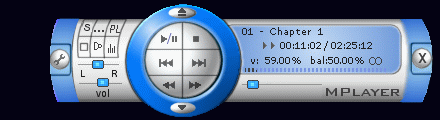
- MPlayer - General media player and plugin. Can play CSS encoded DVDs and supports subtitles.
Awesome (best) software but may violate patents and intellectual property laws. Plays DIVX, DVD and VCD media as well as MPEG files.
Documentation:- YoLinux tutorial on browser MPlayer plug-in downloads and extra codec support.
- MPlayer as a browser helper application
- MPlayer Documentation
- Man page
- codecs: mov, mp3, mpeg-1 (VCD), mpeg-2(SVCD/DVD/DVB), mpeg-4 (ASP/H264), OpenDivX (DivX4/5), Xvid, RealViddio (1/2/3/4), Sorenson, Intel Indeo 3/4, FLI/FLC. HuffYUV, ...
- video: AVI, DVD, MPEG, ASF, QT, Real, Ogg, FLI, Plays Real media, wav, SGI, H264, Indeo3, Sorenson3, VP3, 3ivx, FFv1, ASV1, VCR1/2, QuickTime, DVB, Tivo, Windows Media Video 7/8, MS/Windows WMV, Open DivX, ...
- audio: mp3, RealAudio, ogg, AC3, ACC, WMA, alaw, ...
To play DVD:- gmplayer dvd://1 -alang en
- or gmplayer and right click on the display screen to pull up menu and select "DVD" + "Open disk...".
You can also select audio options here too. I had to select "DVD" + "Audio Languages" + "English - Dolby Digital Stereo" to get sound to work properly and stop the horrible buzzing noise. - or select from the FC-3 desktop menu bar "Applications" + "Sound and Video" + "MPlayer"
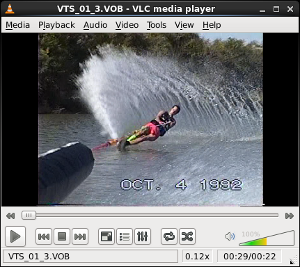
- VideoLan.org: VLC (Video Lan Client) - Plays encrypted DVD's directly from DVD-ROM. (MPEG 1/2, VCD and DVD player)
Also plays MPEG and video streams.
Supports:- codecs: ac3, mpeg-1, mpeg-2, mpeg-4, DivX, mp3, ogg, H.264, MKV, WebM, wmv, ...
- video: AVI, ASF/WMV/WMA, Real, flv (Flash), x11, xmga, xvideo, multicast IPv4/6
- audio: AAC, DTS, AC3/A52, alsa, arts, eds, oss, sdl, mp2, mp3
- Ogle - Plays CSS encrypted DVD's directly from DVD-ROM. Supports DVD menus, navigation and subtitles.
Plays DVD and VCD media as well as MPEG files.
Downlowd packages (freshRPMs.net: i386, x86_64, ...): libdvdcss, libmad, a52dec, libdvdread, ogle, and (optionally) ogle_gui.YUM install:
Install package "ogle":- yum -y install ogle
- yum -y install ogle_gui
(See YoLinux tutorial on YUM configuration and how to add the FreshRPM.net site to your download list.)
Command line start: ogle -u gui /media/cdrecorder
I never got Ogle to work properly.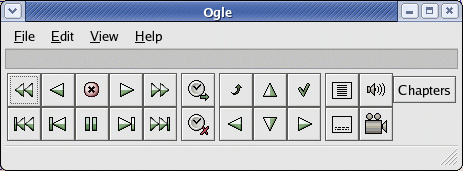
- InterVideo: LinDVD - Commercial DVD support for Linux (Used by IBM Thinkpad) Legally plays CSS encoded DVD's.
- xine - DVD's, VCD's, CDA and MPEG video media player.
Install packages: xine, xine-lib, xine-skins
Supports:- codecs: avi, divx, mp3, mpeg-1, mpeg-2, quicktime, vorbis
- video: aa, opengl, syncfb, x11, xv
- audio: alsa, arts, esd, oss
- Totem - GNOME xine-lib or GStreamer library based DVD movie player. Totem is the default player for Red Hat/Fedora and is compiled with GStreamer libraries. If you want to play DVDs you need to install totem-xine because GStreamer does not have working support for the playing of DVDs. Download from FreshRPMs.net.
- Heroine Virtual: XMovie Quicktime (non-Sorenson codec), MPEG 1/2, DVD
- OMS/OMI Linuxvideo - MPEG 1/2, DVD
- Multimedia4Linux.de - DVD Links
- xAnim - Simple and works great on low power computers. Plays various AVI, MJPEG and Quicktime Codecs. Plays limited list of media files, no DVDs.
DVD Tips:
- Fedora: To auto play DVD upon insertion select from
the desktop menu bar, "Applications" + "Preferences" + "Removable
Storage". Specify the command to play the DVD:
- gmplayer dvd://1 -alang en
- xine --auto-play --auto-scan dvd
HD-5500 Hi Definition Television card:
This pcHDTV card works with Xine. The pcHDTV HD-5500 supports ATSC/NTSC TV reception and accelerated motion compression support with NVidia GeForce4 and Quadro 4 cards. Also supports MPEG-1/2/4 video capture.
Note:
- pcHDTV includes a patched version of Xine which supports this card.
- This card supports the receiving of HDTV airwave broadcasts. See Antennaweb.org top select an HDTV antenna manufacturer and HDTV broadcast stations in your area.
- HDTV resolution can be as high as 1920x1080.
- Data capture of HDTV is about 20Mbps. (1hr = 7.2Gb)
Links:
- pcHDTV.com - Manufacturer's website
- How-To
Hardware:
-
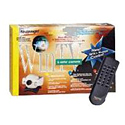
I installed a Hauppauge model 447 WinTV PCI card and Kudzu
detected it upon system boot and made the appropriate system configuration
changes. No further system configuration changes were required.
Kudzu added the following line to the file /etc/modules.conf:
alias char-major-81 bttv
The following devices are supported by the WinTV card:
- /dev/radio - FM radio
- /dev/vbi - TV call sign data
- /dev/video0 - TV
How to generate devices if they did not get generated properly:
[root prompt]# mknod /dev/video0 c 81 0
[root prompt]# mknod /dev/video1 c 81 1
[root prompt]# mknod /dev/video2 c 81 2
[root prompt]#
[root prompt]# ln -s /dev/video0 /dev/video
The following modules are loaded:
- videodev.o: The video4linux device module
- bttv.o: Driver for the Hauppauge card.
- i2c.o: Interface for bus to framegrabber.
- tuner.o: Tuner module to switch chanels.
- msp3400.o: Stereo
I then installed speakers on the audio output of the WinTV card and the cable TV coax to the cable TV/antenna input.
Audio may be configured one of three ways:
- Connect speakers directly to the WinTV "Line Out" connector. (Use amplified speakers.)
- Connect the WinTV "Line Out" to your sound card "Line In" connector on the rear of your computer.
- Use the "internal" connector provided to internally connect the WinTV card to the internal "Aux In" on the sound card. This connector looks like the connector which connects the CD to the sound card internally. When using this method use the sound controls provided in KwinTV.
Note: The graphics card displays the image generated by the WinTV card. Thus they must communicate together. The graphics card must support "Primary Surface Mode" (write to graphics card display memory. Modern video cards do.) or your computer must have loads of memory to hold the video image.
Video capture/encoding using Real Producer:
- YoLinux Real media tutorial: Real Producer video capture/encoding - Using the Hauppauge WinTV PCI card
TV Viewing Software:
-
My preference is KwinTV. I have read that deficiencies in the i2c.o driver necessitate that only one application access the Hauppauge card at a time or risk eeprom damage.
- KwinTV:
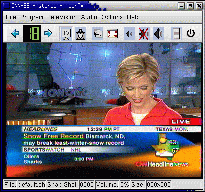
Red Hat RPM package kwintv
Using kwintv: (The following directions are USA broadcast specific. Other broadcast standards are supported by KwinTV)- KwinTV home page
- Start kwintv: /usr/bin/kwintv
- Scan stations: (Not necessary)
- "Program" + "Widard" (Next)
- Select "NTSC" (Next)
- Unselect "Scan whole frequency band" and select "USA cable" (Next). If using an antenna select "broadcast".
- Select "Start". After scan is complete select Next.
- Select "Finish"
- Configure channel selection:
- "Program" + "Browser"
- Select leftmost icon which is "Add new program"
- Select a channel
- Set "recieving region" to "USA [cable]" (USA residents)
- Set "input video format" to "NTSC" (USA residents)
- Set "input source" to "Television"
(Note: Set to S-Video to view input from color video camera which comes with the Hauppauge WinTV PCI card or S-Video camcorder. ) - Assign it a "program name" (i.e. NBC, CNN, etc)
- Select "OK"
- Keep adding new programs till your viewing selections are complete.
xanim) and capture snapshots to a JPEG, PNM or PNG file. KwinTV Notes:
- Up/Down arrows change channels.
- KwinTV channel configuration file: $HOME/.kwintvrc/default.ch
- Use your camcorder as your video source and then you can use KwinTV to video capture (channel 3/4) the analog input to AVI.
- TV viewing software uses /dev/video0
- To exit the application type the letter "q" for Quit.
- The BT848 chipset converts the input from the TV tuner to a digital YUV 4:2:2 sampling (24 bit RGB) for display by the VGA graphics card.
- Peripherals:
- Want to play your console video game and display on your computer? Plug the output of the game console into the Composite Plug on the TV card. Radio Shack can sell you an adaptor for Left/Right audio of the console to the Line-in plug of the sound card.
- VCR's and camcorder will also be able to feed the TV card.
[Potential Pitfall]: KwinTV supports infrared remote controls but I could not get it to work. See: Linux Infrared Remote Control (LIRC) Project
[Potential Pitfall]: While playing with XawTV I messed it all up and the screen setting was too dark. To fix this condition, launch KwinTV and select "Program" + "Browser..." (or the program browser icon). Select the channel and select the edit icon. Then select the options tab and reset the contrast/hue/brightness/color. - Zapping: (Easier to use but less capable than KwinTV. Unfortunately it is also more buggy.)
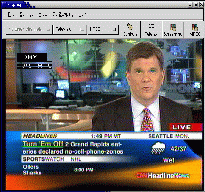
- Zapping home page
- Download: Zapping, a Gnome TV viewer download page
- Install: rpm -Uvh zapping-0.6.0cvs-1.i386.rpm mp1e-1.9pre1-1.i386.rpm
- Configure:
- Select "Settings" + "TV Channels"
- Select "us-cable" (or appropriate setting)
- Select "Search for available channels in the current country"
This scans and loads the channels into the GUI. - Select "OK"
- Select "Settings" + "TV Channels"
Obtains station call sign info/id from device: /dev/vbi0 (cool feature)[Potential Pitfall]: Over time it tends to operate slower and slower if attempting video capture. (Bug) It will eventually hog the full resources of your computer.
[Potential Pitfall]: Often exits poorly leaving processes running. Kill processes before restarting. - XawTV: (NOT recommended)
- XawTV Home Page
- Download: XawTV
Includes the /usr/bin/radio console program which works with the Hauppauge WinTV/radio card. - Configuration:
- Start program: /usr/bin/xawtv
- Press "Enter" (Enter/Carraige Return)
- Press right mouse button to bring up menu. Do it again to toggle it off.
- Select "TV Norm" and select option "NTSC". If the screen scrolls out of frame do this again to correct the picture.
- Select "Frequency table" and select option "us-cable"
- Select "Channel Editor" (or press letter "e")
- Change channels by selecting the UP or Down arrow.
Note: Cursor MUST be in the "Channel" data entry field or in TV viewing screen. - Give the channel a name (i.e. Fox-TV) and select the "Add" button.
- Change channels by selecting the UP or Down arrow.
I do NOT recommend this TV viewer!!
Configuration file: $HOME/.xawtv
Video capture file sizes:
Image Size Frames/Sec Bytes/Sec One Min video 160x120 15 425 Kb/sec 26 Mb 320x240 15 850 Kb/sec 52 Mb 320x240 30 1.7 Mb/sec 104 Mb - KwinTV:
Video Notes:
- NTSC frame ratio: 4:3 or 640x480 resolution at 30 full frames/sec (60 half frames/sec interlaced).
- NTSC displays 480 horizontal scan lines (The NTSC standard refers to 525 total including non-visual data such as closed caption text and 511-525 blank. Theoretical resolution: 720x525. Theoretical bandwidth: 27 Mb/s uncompressed.)
- Video devices often degrade the 480 scan lines to:
- VHS video tape: 240
- S-VHS: 420
- Broadcast Cable: 330
- Satelite: ~400
- DVD: 500
- Laserdisc: 420
- PC quality video: (typically)
- NTSC: 352x240
- PAL: 352x288
- Movie Theater frame ratio: 16x9 at 24 frames/sec
- HDTV: 1080 horizontal lines x 1920 vertical lines (1920x1080)
- PAL/SECAM: 4x3 frame, (x625 theoretical total), 25 frames/sec, 50Hz, 50 half frames/sec interlaced.
- Broadcast NTSC MPEG-2: 720x486, 15Mbits/s
- Hauppauge video capture 320x240 (Want to do better, go HD digital and firewire)
FM radio software:
-
Applications for TV cards with an FM tuner onboard:
- DengerinRadioFM: Simple, allows station presets.
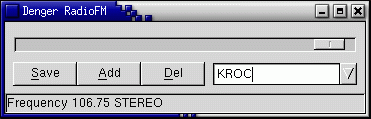
- http://oss.mdamt.net/radiofm/ - DengerinRadioFM Home Page
- Execute: /usr/bin/radiofm
- Configuration file for preset stations: $HOME/.radiofm
- radio: Part of xawtv-3.34-1 TV viewing RPM. Text console program. It works. See radio man page.
- Gnomeradio: Gnome desktop radio
Did not try these:
- DengerinRadioFM: Simple, allows station presets.
The Hauppauge XC77B/44x Webcam:
The webcam which ships with the Hauppauge model 447 connects to the cature card with an S-Video connection. This should be superior in bandwidth to a USB attached webcam.
Test the webcam: I used kwintv and Zapping.
- kwintv:
- Select from the tool bar "Program" + "New".
- Select from the pull-down menu "Input source" - "S-Video"
- Watch yourself on kwintv.
- Zapping: Change the pull-down selection on the tool bar from "Television" to "S-Video".
For capturing video for Real Media streaming see the YoLinux tutorial on Real Producer.
If trying to find a power connector which is compatable with the Hauppauge VCM77 video camera, use the Radio Shack TA-910-5272. (DC inline jack OD 5.5mm x 2.5mm) This is a special order part. I found that my computer would not boot properly when the Hauppauge power cable was used in-line with the PS/2 connectors. Beware of the little "universal" power supplies which can provide multiple voltages. Use a volt meter on any voltage supply first!!! I fried a camera believing the voltage setting on one of these cheap power supplies. It was putting out twice the displayed voltage!!! The only voltage I trust is the PC power supply. It can supply 3.3, 5 and 12 volts. The Hauppauge video camera requires 5 volts. The outer cylinder is negative while the center post is a positive 5 volts. The red wires from a PC power supply are typically 5 volt lines.
Newer versions of the model 447 ship with the Pixera PXG-100 (N-NTSC or P-PAL) which uses a different power connector.
For compatible Video cameras see the YoLinux Harware Hauppauge compatible Video Cameras.
Links:
- YoLinux video hardware links
- TVnow - Displays the North American satellite and network TV Listings that are provided by the TVNOW company.
- Linux Based Time Shifting Box - TiVo like Linux PC
- DVR - Digital Video Recorder - capture and compress.
- GATOS - TV viewing software for ATI All in wonder/Rage/Radeon TV tuner cards.
- Linux Infrared Remote Control (LIRC) Project
Software:
- WebCamProShop.com
- OpenMASH - Toolkit for collaboration and streaming applications. Uses multicast so don't expect it to work across the internet.
Includes multi-user video conferencing tool, "vic": vic hostname/port-number - CamStream - C++/Qt based GUI tools for webcams and other video-devices
- Gqcam - QuickCam/QuickPict clone (Video4Linux/GTK+)
- Gspy - A Gnome security camera
- Linux Motion Detection - watches a video device for activity
Ekiga (once known as GnomeMeeting) is an open source SoftPhone, Video Conferencing and Instant Messenger Gtk application.
Home page: Ekiga.org
Ekiga supports SIP and H.323 telephony standards, audio & video, SMS to cell, text chat and audio only conferencing over the internet. It requires connecting to a server (SIP, PBX, ...) to allow each video conference user to locate each other and negotiate acceptable protocols. ( default is provided.)
Installation:
Debian/Ubuntu/Mint: apt-get install ekigaInstalls the following packages (Ubuntu natty): ekiga libopal3.6.8 libpt2.6.7 libsrtp0
GnomeMeeting:
This installation covers Gnome Meeting 0.85.1 on Red Hat Linux 7.2.
Gnome meeting is compatable with Microsoft NetMeeting.
Note that this project has been renamed to Ekiga.
Installation:
Red Hat/CentOS/Fedora: (Four RPM's were installed)
- gnomemeeting
- GConf
- openh323
- pwlib
GnomeMeeting Usage:
- Use Kwin TV to set the defaults on your video card. Gnome meeting does not do this well. You may end up transmitting CNN by mistake instead of your own video. The Hauppauge card seems to use the last setting. Using KWinTV, you need to set the S-video input as a channel - the lowest channel. Do this by first tuning to the lowest channel and then add a new channel set to be the S-video input. This will set channel 1 to be the S-video. (KWinTV: "Program" + "Browser...". Select the "Add new program" icon. Select "Input video format"=NTSC, "Input source"="S-Video" and assign it a "Program name" i.e. "Camera". Then select "OK".) Exit/Quit KWinTV and then set Gnome meeting to channel 1. ("Edit" + "Settings" + "Device Settings" and set "Video Channel" to "1".)
- Configure Gnome Meeting: "Edit" + "Settings":
- Configure "Personal Data": Select ("Edit" + "Settings") + "Personal Data" Enter data and select "Update".
- Configure "Directory Settings": I used the default ILS Directory argo.dyndns.org then select "Update" to notify the LDAP server. (Alternate ILS: gm.uk.linux.org)
- The default in Gnome Meeting is video turned off. To turn it on select: ("Edit" + "Settings") + "Codecs Settings". Select the tab "General Settings". Depress the button "Video Transmisson" before connecting to the LDAP video server.
- "Device Settings": Set "Video Format" to "NTSC" for the USA crowd. PAL for the Europeans. The "Video Channel" should be set to that matching your S-Video chanel set in KWinTV as described above.
- Select the Gnome Meeting "Book" icon to bring up the LDAP server browser - select the pull-down menu and select the ILS server argo.dyndns.org and select "Refresh".
- Right click to pick the person to connect to.
-
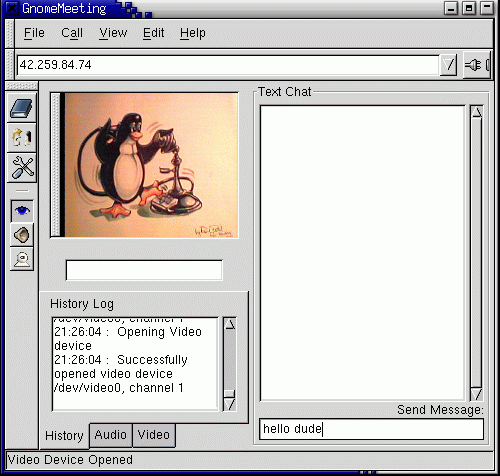
GnomeMeeting screen shot
Potential Pitfalls:
- Audio mixer must have the mic un-muted. (/usr/bin/gmix)
- My headset also has a microphone mute button on the cord - check it.
- Slow networks will require one to reduce the number of frames sent per second (i.e. 1 or 2) or reduce video quality in order to preserve audio rates.
- Firewalls are said to be a potential problem according to the GnomeMeeting FAQ.
Links:
Note for Microsoft Windows XP users: Start Netmeeting: "Start" + "Run" + conf.exe
Other Linux video conferencing options:
- Adobe Connect downloads (commercial)
- Apache OpenMeetings (FOSS) Browser based video conferencing, instant messaging, white board, collaborative document editing and other groupware tools using API functions of the Java based Red5 Streaming Server (GitHub: Red5).
- GigBlueButton - Google code page and downloads (FOSS) Share documents, webcam, chat, audio and your desktop.
- IBM Sametime (commercial)
- Skype is also available for Linux even though it has been purchased by Microsoft. (commercial)
Linux download
Linux has become popular as a DVR device OS. Three custom MythTV Linux distributions are available:
- KnoppMyth - Knoppix and Debian
MythTV plugins: (included with the above distributions)
- MythArchive - Create DVDs from recorded shows
- MythDVD - DVD/VCD playback
- MythFlix - NetFlix RSS feeds interface
- MythGallery - View digital camera photos and movies
- MythGame - Games interface
- MythMusic - Play music files. Uses MythTV remote
- MythNews - RSS news reader
- MythPhone - SIP internet VoIP video phone
- MythVideo - Video catalog and playback
- MythWeather - Weather.com interface
- MythStream - Play internet video or audio streams
Links:
MPEG:
- MPEG Home page
- MPEG.org
- MPEG Presentation - Kazem Najafi
- MPEG-2 FAQ
- MPEG-4 Papers
- Berkeley MPEG-4 Developer Tools
Quicktime:
- Quicktime - Home page (Apple)
- Quicktime Developers - Apple
AVI: (Audio/Video Interleaved)
MWV: (Windows Media Video)
Overview of making movies with Linux. - Overview from Production to Distribution - by Ben Moore
Hardware:
- YoLinux: Linux Harware
- Linux drivers for Bt848/849/878/879 based frame grabbers
- LinuxTV.org
- pcHDTV.com - HDTV PCI card for Linux (suplements video monitor card)
- Hauppauge.com - WinTV PCI card video tuner and capture + FM (suplements video monitor card)
- XdTV
- Kernel documentation:
- RH 7.1 Linux: /usr/src/linux-2.4.2/Documentation/video4linux/bttv/
- Spec.org: Graphics Performance - SPECviewperf, SPECapc, SPECglperf, SPECopc, SPECmedia Benchmark software and test results.
Video Software:
- mjpegtools - MPEG2 encoder and MPEG tools.
- Multimedia4Linux.de - Links and info
- Blender - Mostly a 3-D modeler but it contains some editing features.
- VideoLan.org - MPEG 1/2, VCD and DVD player/tools
- GNU: VCDImager - VCD generation tools.
- Jahshaka video and film compositing and special fx system. Computer Graphics, paint and image processing modules.
- Coriander - GUI for IEEE-1394, IIDC-Compliant Digital Cameras. Control, save and stream video (Beta)
- GStreamer - Streaming video by applying filters to media and streaming. (Under development)
- dv2jpg - converts an "avi dv2" format video stream into an "mjpeg-encoded" video stream, for later converion into a mpeg/video cd.
- Qarbon Viewlet Builder authoring tool - JAVA Web based Video applet viewer
- Video software from Schirmacher:
- Video Conferencing:
- Ekiga (formerly GnomeMeeting) - Video conferenceing tool compatable with MS/Netmeeting
- FVC.com: Click to Meet - First Virtual Communications
- OpenH323 Project - ITU H.323 teleconferencing protocol for video conferencing
API/Tools:
- Khronos.org - API for Embedded Media Authoring and Acceleration - Industry consortium
- Linux 1394 AV/C Library - libavc1394 is a programming interface for the 1394 Trade Association AV/C (Audio/Video Control) Digital Interface Command Set.
- DVD region codes, digital-rights management, ...
- Webcam Slideshow Scripts - by Jamie Zawinski
- DV.com - Digital Video magazine - many links to manufacturers/suppliers/libraries
- DV, DVCAM, and DVCPRO Formats
- VCDhelp.com - Info on Video CD's (VCD)
- Linux1394: Firewire drivers - (Now included with 2.4.x kernel)
- WebEx.com: Video conferencing outsourcer and service - has Linux, Unix, Mac, MS/Windows clients
- Video4Linux resources
- Artbeats.com: Digital Film Library - Royalty free stock video footage of many catagories.
- HollywoodEdge.com - Sound effects library. (on CD)
- LinuxJournal: GFX: DreamWorks Feature Linux and Animation
- Linux Invades Hollywood - By Robin Rowe
Development Libraries:
- libdv - Software codec used by most digital camcorders supporting IEEE 1394 (FireWire).
- libraw1394
- Linux 1394 support - Part of 2.4 kernel
- libdc1394 - Control for IEEE 1394 based cameras
- 1394 Trade Association
 Books:
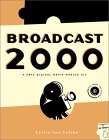 |
Broadcast 2000 : A Free Digital Moviemaking Kit
by Curtis Lee Fulton ISBN #1886411700, No Starch Press If you want to learn how to use the Broadcast 2000 video editor for Linux from HeroineWarrior.com, you will need this book. |
|
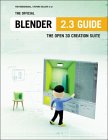 |
The Official Blender 2.3 Guide
by Ton Roosendaal, Stefano Selleri ISBN #1593270410, No Starch Press Manual to the 3-D graphics and animation program Blender. |

|
 |
The Blender Book
by Carsten Wartmann ISBN #1886411441, No Starch Press Manual to the 3-D graphics and animation program Blender. This helps decipher the Blender interface. |
|
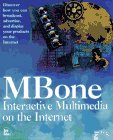 |
Mbone: Interactive Multimedia on the Internet
by Vinay Kumar ISBN #1562053973, New Rider Publishing What it is and how to use the MBone multicast video conferencing system. |
|
| No image available |
Digital Video Camcorders: Open source programmers guide
by Tewell ISBN #0750677619, Newnes For programmers and embedded systems engineers and professionals.
|
|

