

The Wine compatibility layer is an implementation of the Microsoft API on X-Windows which allow Linux to run Microsoft Windows application. The limitation is that since the Microsoft applications have been compiled to run on Intel 32 bit architectures, Wine is limited to the same architecture. The executable will run natively in Linux. Wine is NOT a virtual machine. Thus Wine does NOT read each binary instruction. Wine does NOT require the installation of the Microsoft Windows operating system. The Microsoft Windows application will run on Linux executing its Intel binary instructions. The Wine compatibility layer is invoked every time the application makes a call to a Microsoft Windows API function. Wine will handle the call and make the appropriate X-Window call to display or render the appropriate graphics.
This particular example is for Wine version 0.9.42 on Red Hat Enterprise Linux 5, but other versions of Linux should be similar.
Wine Installation: (as root)
- Download Wine packages: wine binary downloads
Red Hat Wine RPM packages: Red Hat / Fedora / CentOS downloads
- wine: Empty but contains dependency information
- wine-core: Wine core package
- wine-capi: ISDN support for wine
- wine-cms: Color Management for wine
- wine-devel: Wine development environment
- wine-esd: ESD sound support for wine
- wine-jack: JACK sound support for wine
- wine-ldap: LDAP support for wine
- wine-nas: NAS sound support for wine
- wine-tools: Additional wine tools
- wine-twain: Twain support for wine
- Install Wine:
- Red Hat: rpm -ivh wine-0.9.42-1.el5.i386.rpm
wine-core-0.9.42-1.el5.i386.rpm wine-docs-0.9.42-1.el5.noarch.rpm
wine-tools-0.9.42-1.el5.i386.rpm wine-capi-0.9.42-1.el5.i386.rpm
wine-jack-0.9.42-1.el5.i386.rpm wine-cms-0.9.42-1.el5.i386.rpm
wine-esd-0.9.42-1.el5.i386.rpm wine-ldap-0.9.42-1.el5.i386.rpm
wine-nas-0.9.42-1.el5.i386.rpm wine-twain-0.9.42-1.el5.i386.rpm
(EPEL: Extra Packages for Red Hat Enterprise Linux - Wine for RHEL/CentOS 5/6)
or YUM: yum install wine - Ubuntu/Debian: apt-get install wine
Configuring the APT repository for obtaining Wine
- Red Hat: rpm -ivh wine-0.9.42-1.el5.i386.rpm
wine-core-0.9.42-1.el5.i386.rpm wine-docs-0.9.42-1.el5.noarch.rpm
wine-tools-0.9.42-1.el5.i386.rpm wine-capi-0.9.42-1.el5.i386.rpm
wine-jack-0.9.42-1.el5.i386.rpm wine-cms-0.9.42-1.el5.i386.rpm
wine-esd-0.9.42-1.el5.i386.rpm wine-ldap-0.9.42-1.el5.i386.rpm
wine-nas-0.9.42-1.el5.i386.rpm wine-twain-0.9.42-1.el5.i386.rpm
- Wine Configuration: (install to users home directory)
Note: By default, Wine installs to the user's home directory. This is a problem for many users connected to a file server. Both a user's home directory installation and a site wide installation are covered.- Configure with Wine GUI tool: /usr/bin/winecfg
wine: creating configuration directory '/home/userX/.wine'...
By default this will create the directory ~/userX/.wine/ and the following:
wine: '/home/userX/.wine' created successfully.
- sub-directories:
- ~/.wine/dosdevices/
- ~/.wine/drive_c/
Your "C:" drive will be located here.
- And config files:
- system.reg
- userdef.reg
- user.reg
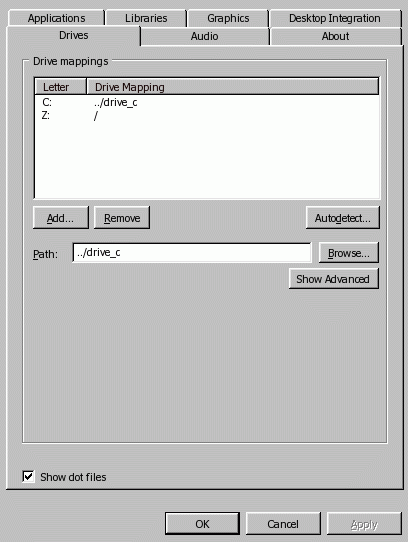
GUI winecfg - sub-directories:
- Device configuration: By default, winecfg will generate your devices such as your "C:" drive, CD-ROM "D:", etc
ls -l ~/.wine/dosdevices/
lrwxrwxrwx 1 userX users 10 Aug  7 15:20 c: -> ../drive_c/
lrwxrwxrwx 1 userX users 17 Aug  7 15:20 d: -> /media/cdrecorder/
lrwxrwxrwx 1 userX users  8 Aug  7 15:20 d:: -> /dev/hda
lrwxrwxrwx 1 userX users  1 Aug  7 15:20 z: -> //
While your devices are configured automatically, you can manually add devices. eg:- Com port: ln -s /dev/ttyS0 com1
- Printer: ln -s /dev/lp0 lpt1
- Configure with Wine GUI tool: /usr/bin/winecfg
- Edit ~/.wine/system.reg to set the application owner and organization. This is specified in two locations. Edit both:
"RegisteredOrganization"="MegaCorp"
"RegisteredOwner"="userX"
System wide installation for all users:
If your system configuration has a large number of users connected to a file server, network traffic due to application loading could become huge as well as the disk space employed to install a copy of Wine and all of the MS/Windows applications duplicated for each user. For such systems it is best to install a single copy of a Wine configuration with applications in a systems area.- Set the environment variable for the administrator (root) and all users: export WINEPREFIX=/opt/wine
- Execute the command: wineprefixcreate
- Then execute: winecfg
Insert the CD-ROM and execute the following command to launch the MS/Office installer:
- Installing MS Office 2003: wine /media/cdrecorder/setup.exe
- Installing MS Office XP: wine /media/cdrecorder/SETUPPRO.EXE
- Installing MS Office 2000: /media/cdrecorder/setuppro.exe
I found that the only version of MS/Office which will install properly under Wine 0.9.42, was MS/Office 2000. Check the Wine list of working applications as success is kernel and release specific.
- Launch MS/Office 2000 installer: /media/cdrecorder/setuppro.exe
- Follow installation sequence:
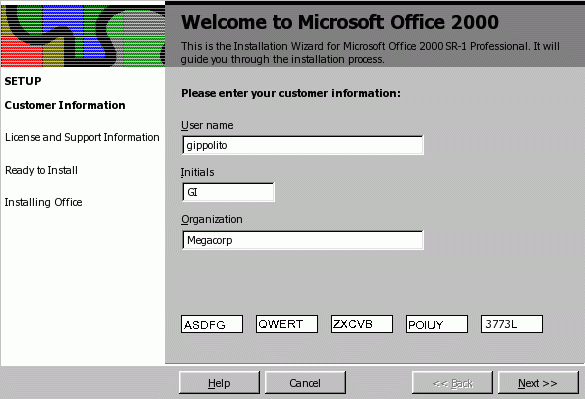
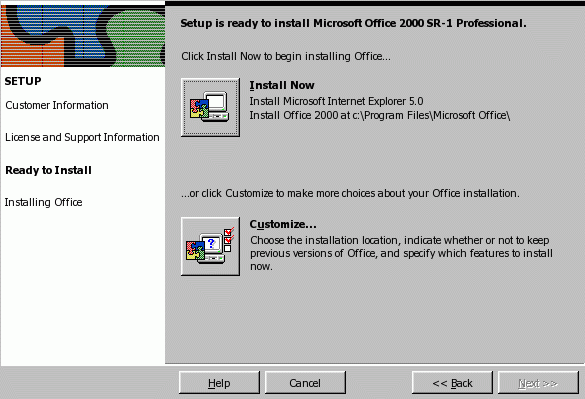
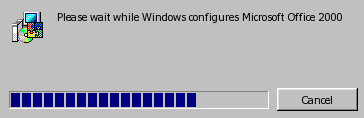
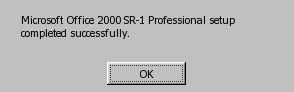
- Run Microsoft Office applications on Linux:
- MS/Word:
- Default location: wine ~/.wine//drive_c/Program\ Files/Microsoft\ Office/Office/WINWORD.EXE
- Alternate location: wine /opt/WINE/drive_c/Program\ Files/Microsoft\ Office/Office/WINWORD.EXE
- MS/Excel:
- Default location: wine ~/.wine//drive_c/Program\ Files/Microsoft\ Office/Office/EXCEL.EXE
- Alternate location: wine /opt/WINE/drive_c/Program\ Files/Microsoft\ Office/Office/EXCEL.EXE
- MS/Powerpoint:
- Default location: wine ~/.wine/drive_c/Program\ Files/Microsoft\ Office/Office/POWERPNT.EXE
- Alternate location: wine /opt/WINE/drive_c/Program\ Files/Microsoft\ Office/Office/POWERPNT.EXE
- The package "wine-tools" comes with notepad (/usr/bin/notepad).
- MS/Word:
- Man pages available: wine, wineserver, wineprefixcreate
- Microsoft Office can be uninstalled using the GUI program: uninstaller
- A Wine version of "regedit" is used to manually edit the
registry. In fact it looks and operates just like the MS/Windows
version of "regedit".
Command: /usr/bin/regedit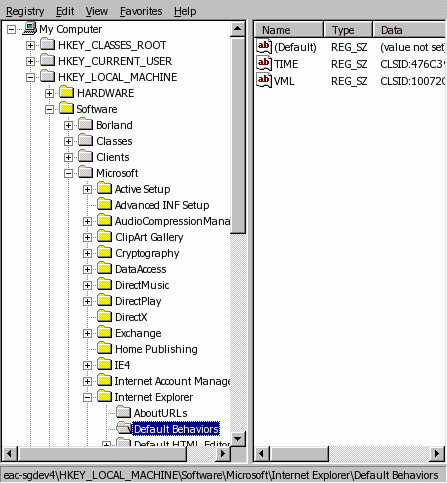
- If you install IE or Quicktime, these applications will install a "Control Panel" application made accessible using the command "wine control".
- "wineserver" usually gets started automatically by Wine
whenever the first wine process gets started. It can also leave a
"stuck" process. Cleanup as follows:
List "wineserver" processes: ps auxw | grep wine1033 29604 0.4 0.0 4316 1744 ? Ss 14:21 0:06 /usr/lib/../bin/wineserver
wineserver -k[n] Kill the current wineserver, optionally with signal n.
1033 30859 0.0 0.0 3880 680 pts/8 R+ 14:45 0:00 grep wine
wineserver -k29604
Other processes to watch for/kill: explorer.exe - Winprefix can be used for a single application installation which would be separate than other Wine/MS application installations:
- mkdir appname
- WINEPREFIX="/home/userX/appname" wineprefixcreate
This will create a directory called /home/userX/appname. In this directory you will find a fake Windows drive and the Wine configuration files system.reg and user.reg. - Command to install the application: WINEPREFIX="appname" wine setup.exe
- Run application: WINEPREFIX="/home/userX/appname" wine ~/appname/drive_c/Program\ Files/app/appname.exe
- For a fresh copy of the default config file:
cp /usr/share/doc/wine-xxxxxxxx/samples/config ~/.wine/config - To fix CD-ROM drive recognition problems, edit file /etc/fstab
/dev/cdrom /cdrom iso9660 ro,noauto,users,unhide 0 0
or use mount command: mount -t iso9660 -o ro,unhide /dev/hdd /mnt/cdrom
or
/dev/hdd /mnt/cdrom auto umask=0,unhide,user,codepage=850,iocharset=iso8859-15,noauto,ro,exec 0 0
Add the parameter "unhide". - Legacy Wine - Install Microsoft Office:
- cd /mnt/cdrom
- wine INSTALL.EXE
- DLLOVERRIDES="ole32=n;oleaut32=n;rpcrt4=n" wine INSTALL.EXE
- WineTools: Menu driven Wine configuration tool and installer for Microsoft Windows applications.
Make a note of which version of Wine should be used with WineTools. WineHq.com will release newer versions of Wine which are not compatable.
rpm -ivh winetools-2.1.2-jo.i386.rpm - Download and install xdialog. (Required for WineTools)
rpm -ivh xdialog-2.1.2-1.1.fc3.rf.i386.rpm - WineTools: Wine configuration tool - I could not get this to work at all!!!
- Fedora Core users: Turn off pre-linking (as root)
- prelink -uav
- rm -f /etc/prelink.cache
- True type font (.ttf) files can be placed in .../drive_c/windows/fonts/
- Start Wine configuration program as regular user: /usr/local/bin/wt2
- Select "OK" to get to "Base setup".
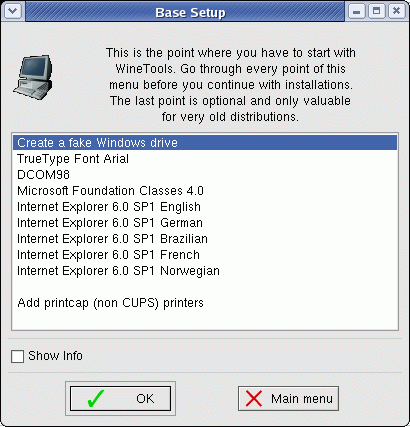
Select each item and then "OK". Only one language needs to be selected.
Note: True Type Arial font installation requires an internet connection. - Don't do this step!!!
- Fedora Core users: Turn off pre-linking (as root)
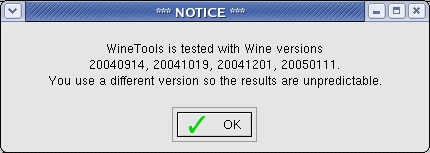
- When launching WineTools, the dialog box will directly
specify the compatable versions of Wine. This is not necessarily in
sync with the web page which lists compatability for a given version of
WineTools and maybe not for the version you are using. This is a
problem you may run into if upgrading Wine from source.
Wine Links:
- WineTools home page (winecfg)
- Wine-Wiki.org
- Linux Gazette: Compiling/installing/running wine
- FranksCorner.org - Wine info
- News group: comp.emulators.ms-windows.wine
- IRC: irc.freenode.net #WineHQ
The only way to run some of the advanced and more complex MS/Windows XP games and aplications with Wine, is with the commercial product, Code Weavers Crossover version of Wine. You can try the 14 day trial version for free. Installation of Wine and Microsoft Office 2003 and 2000 are covered below. Note that Outlook requires the following instructions to operate properly as Outlook needs MS/Explorer in order to provide all the proper libraries. This product allows seamless integration of Microsoft applications on Linux.
Codeweaver Crossover and Microsoft Office 2000 Installation:
- Download 30 day trial version or purchase licensed version from Codeweavers
- As root install Crossover RPM: [prompt]# rpm -ivh cxoffice-2.0.1-1.i386.rpm
or install from install shell script for Linux distributions which do not support RPMs.
Installs to: /opt/cxoffice/
Docs: /opt/cxoffice/README, /opt/cxoffice/doc/index.html
Uninstall: /opt/cxoffice/bin/cxuninstall
Support: http://www.codeweavers.com/support/ - Start/prepare Crossover: (login as user)
- Start Crossover Office Setup (2.0.1)
- [prompt]$ /opt/cxoffice/bin/cxsetup
- Next
- Proxy setup if required:
- Select "Use HTTP Proxy"
- Host: proxy.megacorp.com
- Port: 80
- Start Crossover Office Setup (2.0.1)
- Install Office 2000: Run Microsoft Office setup installer program.
- Select "Microsoft Office 2000"
- New Software: Select Install
Select "Microsoft Office 2000"
Next - Install from "Microsoft Office installation CD" or choose "Alternate CD-Rom location"
(Note: You have the option of installing from sources other than the CD. i.e. shared drive. See the Yolinux Microsoft network integration tutorial if you need to mount a MS/Windows file server.)
Press "OK"
Next
Continue
- Now MS Windows Installer pops up. Install Office 2000.
- Enter: Name, initials, organization and CD key.
(Note: You may have to enter the letters of the license key as lower case letters.)
Next - Accept license
Next - Install default to "Program Files"
Finish
- Enter: Name, initials, organization and CD key.
- Install "DECOM95"
- Click Install
- Select "*DECOM95"
Next - Select radio button "Advanced Install".
Next - Install file: /mnt/cdrom/IE5/EN/DECOM95.EXE
Open
Next
Finish
- Install IE:
- Install
- Check the checkbox labeled "Install unsupported software"
Next - Other exe file: /mnt/cdrom/IE5/EN/IE5SETUP.EXE
Open
Next - Yes resume setup
Next
Finish - Finish
Configure/Run Microsoft Application: Outlook
- Configure:
- Select "Menus" tab and select Outlook icon
or use regular applications start menu.
- Select "Menus" tab and select Outlook icon
- Run:
- Outlook startup: Email service options: Corporate or Workgroup
Next - Inbox Setup wizard: Select "Microsoft Exchange Server"
Next - Settings:
MS Exchange Server: Node-Name-Of-Server
Mailbox: login-user-id
Next - Travel: No
Next - Exchange server
Finish - User: login-user-id
Domain: WINDOWS-DOMAIN
Passwd:
OK
- Outlook startup: Email service options: Corporate or Workgroup
Cutting and pasting between Linux X-Windows and Microsoft Windows applications:
- MS/Windows to X/Windows:
Cut in MS/Windows: Select text then ctrl-C (copy) or Cnlt-X (cut)
Paste in X/Windows: press middle mouse button. (both left and right at the same time if using a two button mouse emulating a three button mouse) - X/Windows to MS/Windows:
Cut in X/Windows: Select text (left mouse button pressed from start of text to end of text, or double click to grab single word or tripple click to grab entire line of text.)
Paste in MS/Windows: ctrl-V
Notes:
- Microsoft applications running on Crossover Office will not view Linux file/directory soft links in the file selection browser.
- Starting Windows Media Player: $HOME/.cxoffice/.cxoffice-app-3 ms-windows-media-video-file.wmv
- I had NO luck trying to even launch let alone run
MS/Project 2000 with Crossover 2.0 but it works great with the new
Crossover 3.0!!!!.
- Script to start Microsoft Visio: /opt/bin/Start-Visio
#!/bin/bash
export LD_LIBRARY_PATH=/opt/cxoffice/lib:$LD_LIBRARY_PATH
export CX_ROOT=/opt/cxoffice
export CX_DEBUGMSG=-all
export CX_BOTTLE=/home/userX/.cxoffice/dotwine
export WINEPREFIX=/home/userX/.cxoffice/dotwine
export WINELOADER=/opt/cxoffice/bin/wineloader
export WINESERVER=/opt/cxoffice/bin/wineserver
export WINEDLLPATH=/opt/cxoffice/lib/wine
# Actual Linux file: /home/userX/.cxoffice/dotwine/fake_windows/Program Files/Microsoft Office/Visio10/Visio.exe
/opt/cxoffice/bin/wine --workdir "/home/userX/.cxoffice/dotwine/fake_windows/My Documents" \
                       "C://Program Files//Microsoft Office//Visio10//visio.exe"
Visio desktop launcher:- FC 3: $HOME/Desktop/Visio.desktop
- RH 7/8/9: $HOME/.gnome-desktop/Visio.desktop
[Desktop Entry]
Version=1.0
Encoding=UTF-8
Name=No name
Type=Application
Exec=/opt/bin/WineVisio
TryExec=
Icon=/home/userX/.cxoffice/dotwine/fake_windows/Windows/Icons/vdx.xpm
X-GNOME-DocPath=
Terminal=false
Name[en_US]=Visio
GenericName[en_US]=Visio
Comment[en_US]=
Visio Tip: A screen repaint is often necessary after an image translation using the scrollbar. I create an extra sheet. I select the second sheet and then return to the sheet I'm working on to force a repaint the screen.
Tips:
- Turn off the "Office Assistant" paperclip.
Crossover Wine (2.1.0):
[root prompt]# mkdir /../tmp
[root prompt]# cp install-crossover-office-21.1.0.zip /../tmp
[root prompt]# cd /../tmp
[root prompt]# unzip install-crossover-office-21.1.0.zip
[root prompt]# md5sum install-crossover-office-2[1].1.0.sh
310bea670a5cf31737dbbf691b7ebd6a
[root prompt]# chmod +x install-crossover-office-2[1].1.0.sh
[root prompt]# rm /opt/cxoffice/bin/wineserver
[root prompt]# rm /opt/cxoffice/bin/wineloader
[root prompt]# rm /opt/cxoffice/lib/xml/libperl.so.5.8
[root prompt]# ./install-crossover-office-2[1].1.0.sh
Tips:
- I found that I had to remove the previous versions of the files /opt/cxoffice/bin/wineserver, /opt/cxoffice/bin/wineloader and /opt/cxoffice/lib/xml/libperl.so.5.8 in order to have a flawless upgrade.
- Un-zip and install from a directory other than your target destination directory.
Crossover Upgrade (3.0): rpm -Uvh --force xoffice--------.rpm
Change Note: The opperation of Linux cut and paste has switched to a more Microsoft Windows like buffer interface. In Crossover 2.X one could cut into the regular X-Window copy/cut buffer with the left mouse button and then paste in the Crossover 2.X application with the traditional ctrl-V. The X-Window applications now have to support a special non-X-Window controlled cut buffer. For example Mozilla supports the Linux ctrl-C/ctrl-X copy/cut buffer. The GNOME terminal supports copy/cut with shift-ctrl-C/shift-ctrl-X. These Linux buffers can be exchanged with a Crossover 3.0 application. The traditional X-Window copy/cut buffer can no longer be exchanged with Crossover controlled applications.
- DOSemu - DOS emulator installation and configuration
- DOSemu HOWTO - Mike Deisher
- FreeDOS.org
- Plex86 - Run Linux and Microsoft Windows at the same time using concurrent virtual machines.
- TheOpenCD.org - Open Source Software ported to Windows and other proprietary OS's.
YoLinux Links:
- Office suites for Linux
- Configuring Linux for a Microsoft Windows Environment and Network
- UNIX For DOS Users
- Using DOS Floppies with Linux

