

Dynamic web photo album galleries allow for the upload/addition, deletion, annotation and management of photo album galleries online.
Linux Server Gallery Software:
| Web Server Software | Description | Requirements | Demo |
|---|---|---|---|
| CopperMine | Message board format | PHP, GD or ImageMagick and MySQL | demo |
| BBgallery | Simple. | PERL, GIMP | Sample |
| Easy Photo Gallery | PHP 5, MySQL, GD, Zlib | Screen shots | |
| Gallery2 | Complete Gallery | PHP (and php gd or GraphicsMagick), ImageMagick (or NetPBM), SQL db. Install with YUM from EPEL repository. | |
| Goop Gallery | Full featured, no DB required. | CMS: CakePHP or Drupal | |
| Gullery | Photo hiearchy | Ruby, mini-Magick | no demo |
| iFoto | PHP, GD2 and CSS based | ||
| Jalbum | ($10.00 donation) | ||
| Lightbox V2 | Javascript scripts for simple AJAX album | Javascript | demo |
| MiniShowcase | Galleries and thumbnails ($9.99 USD) | PHP | |
| My Photo Gallery | Directory based hierarchy | PERL, ImageMagick (included in a standard Linux installation) | |
| PhotoStack | PHP | demo | |
| Plogger | Heirarchy of photos | PHP, MySQL and GD | demo |
| PYXY | Simple collection of photos | PHP, Lightbox.js | demo |
| Simple PHP Photo Gallery | PHP | ||
| Single File Gallery | Just a single PHP file. | PHP and php gd | |
| Weblery | Single PHP file. | PHP | |
| Zen | Heirarchy of images | PHP5, GD and MySQL 5 | demo |
After reviewing many of the Dynamic Web Photo Gallery server software packages, I quickly became convinced that "My Photo Gallery" by Mike Spice, was the best balance between features and complexity of installation for an online community/family photo album for my family web site. This particular tutorial covers "My Photo Gallery" installed on Red Hat Linux.
Features include the ability to browse photos in "thumbnail" format and select photos for viewing. The thumbnails are generated on the fly the first time through. A search capability is also built in to make it easy for the viewer to find photos. The photo site management tool provided allows one to upload/delete photos, create and delete folders (album directories) and to annotate it all. It is ideal for setting up a community/family photo album on the web which users/family members can self manage. The lack of built-in authentication and authorization controls make myPhotoGallery a poor fit for ISPs or public venues while the simplicity makes it ideal for limited community or family groups. I use Apache password authentication and authorization controls to block non-member access.
The hierarchy and organization is maintained by file system directories which nicely mapped to the way I organized photos on my own desktop. MyPhotoGallery will generate the thumbnail images and web presentation and navigation.
- Original home page: http://www.fuzzymonkey.net/software/photogallery/ (no longer available)
- Cached download: myphotogallery-4.03.tar.gz
Prerequisites:
- Configure web server: It is assumed that Linux is installed including the Apache web server and PERL.
See the YoLinux.com Web server configuration tutorial for Apache, DNS and FTP configuration.
Also see the YoLinux.com Internet security configuration tutorial. - Install ImageMagick: ImageMagick Home
(They also have tar.gz files.)
- Red Hat/CentOS/Fedora:
- Yum installation: yum install ImageMagick ImageMagick-perl
or - Install from RPM's:
- ImageMagick
- ImageMagick-perl
[Potential Pitfall] Red Hat 7.1: The --nodeps flag fixes the dependency on libbz2.so.1.0
Add link: ln -s /usr/lib/libbz2.so.1.0.0 /usr/lib/libbz2.so.1.0
[Potential Pitfall] Red Hat 7.1: The installation of C++ development libraries may cause dependency failures. They can be removed:
rpm -e ImageMagick-c++-5.2.7-2 ImageMagick-c++-devel-5.2.7-2
- Yum installation: yum install ImageMagick ImageMagick-perl
- Ubuntu: apt-get install imagemagick perlmagick
- Red Hat/CentOS/Fedora:
- Install libjpeg: MyPhotoGallery requires the command jpegtran:
- Red Hat/CentOS/Fedora: yum install libjpeg
- Install PERL modules:
- Install PERL modules using CPAN libraries:
# perl -MCPAN -e shell

cpan> install IO::String
...
..
.

cpan> install Image::Info
Image::Info is up to date.   - I guess I was good to go on this one.

cpan> install Image::Magick  - I did not need to do this as it was supplied by the RPM

cpan> exit
First time through it will ask a bunch of questions. (Answer "no" to the first question for autoconfigure.) Defaults were good for me. The only reason to manually configure this is if you are using a proxy. It then asks for your location (i.e. North America) and country. I entered a number for the first CPAN server but after that the actual URL was cut and pasted in whole. - Install PERL modules using RPM's:
Example: Red Hat Enterprise 5/CentOS 5 Perl module RPM install:
Perl module RPMs are available from https://centos.pkgs.org/:- perl-IO-String
- perl-Image-Info
- perl-Image-Xbm
- perl-Image-Xpm
- perl-Image-Base
- rpm -ivh perl-IO-String-x.xx-x.x.elx.noarch.rpm perl-Image-Info-x.xx-x.elx.noarch.rpm perl-Image-Base-x.xx-x.x.elx.noarch.rpm perl-Image-Xbm-x.xx-x.x.elx.noarch.rpm perl-Image-Xpm-x.xx-x.x.elx.noarch.rpm
- Install RPM from YUM repository: yum install ImageMagick-perl
If it fails to install, load the appropriate RPMs and retry using "force install module-name"
- Install PERL modules using CPAN libraries:
Install myPhotoGallery:
- Prepare CGI directory:
cd /var/www/cgi-bin/         - Note: Ubuntu uses /usr/lib/cgi-bin/
mkdir cgi-user1-photo        - or pick a name which works for you.
chmod +rx cgi-user1-photo
chcon -R -h -t httpd_sys_script_exec_t cgi-user1-photo    - If using SELinux kernel
For more on SELinux, see our Apache configuration tutorial. - Prepare user photo directories:
cd /home/user1/public_html/
mkdir photo            - To store photo image files (or pick a name which works for you.)
mkdir photodata        - To store photo comments, data and thumbnail files
chmod ugo+rx photo photodata  - or chown apache.apache photodata or use Apache suexec
chmod ugo+w photodata
chcon -R -h -t httpd_sys_script_rw_t photo photodata    - If using SELinux kernel
For more on SELinux, see our Apache configuration tutorial. - Unpack myPhotoGallery: tar xzf myphotogallery-X.X.tar.gz
(This creates a subdirectory "photo/" and its' contents.) - Relocate cgi and prepare cgi directory:
cd photo - Directory created by un-taring/un-zipping tar.gz file. cp -R common.pl sitevariables.pl imagemagick.pl index.cgi protected/ /var/www/cgi-bin/cgi-user1-photo touch /var/www/cgi-bin/cgi-user1-photo/log.txt chmod ugo+w /var/www/cgi-bin/cgi-user1-photo/log.txt chcon -R -h -t httpd_sys_script_ra_t /var/www/cgi-bin/cgi-user1-photo/log.txt cp template.html /var/www/cgi-bin/cgi-user1-photo chcon -R -h -t httpd_sys_script_ro_t /var/www/cgi-bin/cgi-user1-photo/template.html - Relocate supporting image files:
cp -R site-images/ /home/user1/public_html/photodata/ chcon -R -h -t httpd_sys_content_t /home/user1/public_html/photodata/site-images - Password protecting the album management CGI (protected/manage.cgi):
See the YoLinux Apache authentication tutorial.
This prevents other internet users from unauthorized upload and modification of your photo album.
- Files copied to a directory assume the SELinux context type of the directory.
- SELinux change context command chcon man page
- SELinux Context Types:
Context Type Description httpd_sys_content_t Used for static web content. i.e. HTML web pages. httpd_sys_script_exec_t Use for executable CGI scripts or binary executables. httpd_sys_script_rw_t CGI is allowed to alter/delete files of this context. httpd_sys_script_ra_t CGI is allowed to read or append files of this context. httpd_sys_script_ro_t CGI is allowed to read files and directories of this context.
- Allowing all users the ability to write or modify:
chmod ugo+w photodata - Make it owned by the web server process "apache" (Red Hat/Fedora) or "www-data" (Ubuntu):
chown apache.apache photodata - Configure the Apache web server to execute the CGI as the directory owner.
The cgi can run under (switch user) the owners id.
By default, the Red Hat configuration has the apache web server running under the user id apache. Ubuntu will run under the user id www-data.
For more on Apache configuration for suexec, see our Apache configuration tutorial.
Edit configuration files: (First cd /var/www/cgi-bin/cgi-user1-photo/)
- Set paths: sitevariables.pl
- Edit page template: template.html
This step is only required if you want to change the page title, default colors, add CSS, etc. Add tips and instructions here as well.
Web interface:
- Configuration Management: http://your-domain/cgi-bin/cgi-user1-photo/protected/manage.cgi
Perform this first. This CGI will test your PERL module installation, ImageMagick installation and CGI access to all required directories. - Photo Album Viewing: http://your-domain/cgi-bin/cgi-user1-photo/index.cgi
- A file system directory is equivalent to a "Photo Album".
- Uploading files: One may use the web interface (manage.cgi) to upload from a remote client computer or just place the photos in directories on the web server (via FTP or read from CD, etc) and MyPhotoGallery will operate on the image files it finds in those directories.
- An image can be chosen as the "Album Cover" or the default file folder icon will be used.
- Directory/Album password protection: Create a file "lock" in the directory/album to protect.
user=password
greg=supersecret
bob=sillyword
[Potential Pitfall] A corrupted or blank
JPEG image
file will cause a unique error. When viewing an album, the entire page will be
blank. Remove the image file or rename with a "." as a prefix to make it a
hidden file and all will work again.
[Potential Pitfall] MyPhotoGallery version 2.X (old) Do NOT upload an image
file with blanks in the name because it will mess up the generation of the thumbnail images. Use and underscore "_" instead.
It is not something that UNIX users would typically do but the MS/Windows users
seem to do this as a matter of habit. (Later version of MyPhotoGallery fixes this limitation)
[Potential Pitfall] Do not use the character "&" in a file or folder name.
[Potential Pitfall] Upgrade from Red
Hat 7.1 to 7.3 breaks the Photo Album due to bugs in Image Magick. To
fix this I had to reinstall the old version by performing the following
steps:
- rpm -e ImageMagick ImageMagick-perl ImageMagick-devel xfig
- ln -s /usr/lib/libbz2.so.1.0.2 /usr/lib/libbz2.so.1.0
- rpm -ivh --nodeps ImageMagick-5.3.7-1.i386.rpm ImageMagick-devel-5.3.7-1.i386.rpm ImageMagick-perl-5.3.7-1.i386.rpm
- YoLinux System Aministration: PERL administration/maintenance
- YoLinux Tutorial: Apache login authentication and web site protection - recommended because the manage.cgi program could give a hacker destructive power over your machine if it isn't password protected.
A static photo gallery is one which is comprised of a static HTML web page of thumbnail images which link to a full size version of the image selected. They are static because they do not allow for dynamic addition, deletion, annotation or managment of the photo album via a web interface.
The web server based image gallery software covered above are server based software systems to enable the upload and display of photos. The software is used to dynamically generate the pages on the server. The following static galleries generate the web album content on the desktop for upload to the server.
Four Linux desktop tools are covered here which can be used to generate a static HTML web page of your photos.
- # Konqueror (with Image Gallery plugin) (GUI)
- # Kallery (GUI)
- # FGallery (command line)
- # Bins (command line)
- # Lazygal (command line)
- # Album (command line)
- # ThumbsUp (command line)
The current realese of Ubuntu Natty (11) does not include this Konqueror plugin so I recommend the use of KDE Kallery or Bins.
Konqueror (KDE 3 and 4): The KDE file manager/web browser has the ability to generate a web page (html) displaying thumbnails of photos which when selected will display the full photo. This requires the image manipulation software dependancy: ImageMagick.
Installation:
- Red Hat: install RPM kdebase
- Ubuntu 10.04: sudo apt-get install konqueror konqueror-plugin-kimgallery
Place all photos to be displayed on the web page in a single directory. Launch the KDE file manager:
- /usr/bin/kfmclient exec ./
(required for Fedora 3 but not in later releases)
Where "./" is the current directory or the directory path of the photos. - /usr/bin/konqueror
Browse file system with browser: file:/
Use the KDE file manager to go to that directory and press "ctrl-I" to generate. (Or from the task bar select: "Tools" + "Create Image Gallery") The result is the generation of thumbnail images of all photos (it generates the directory thumbs/ and the thumbnail images) and a web page (images.html) to display all the thumbnail images with hyperlinks to the actual photos.
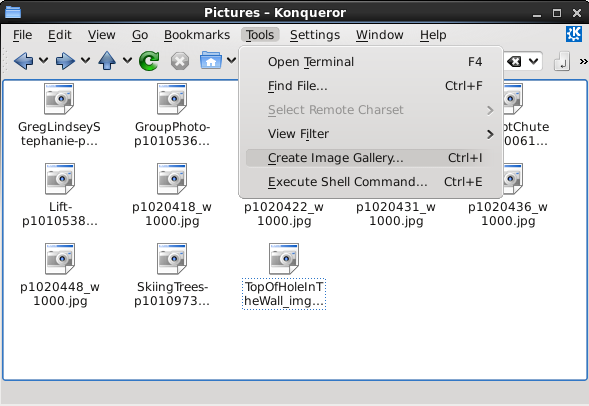
Select "Tools" + "Create Image Gallery"
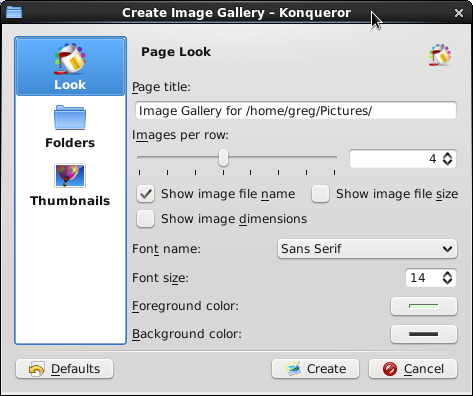
Take defaults or customize your settings.
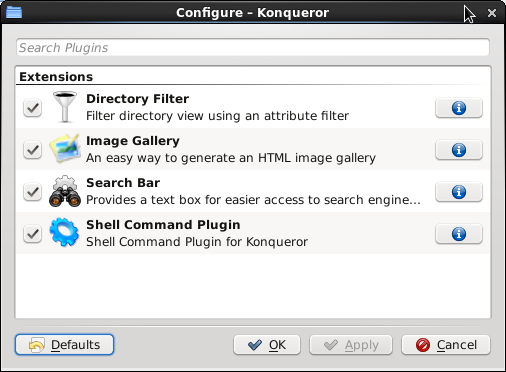
KDE Konqueror requires the "Image Gallery" plugin.
Verify that this plugin is pressent: "Settings" + "Configure Extensions"
The KDE file transfer capabilities may be used to upload this to the web server. (fish://www.host.com/path uses ssh for file transfer).
Ubuntu Lucid: apt-get install konqueror kdelibs konqueror-plugin-kimgallery
This feature is no longer available in Ubuntu Natty (11)
Takes a directory of images, scales them to a user specified maximum size and quality and generates an html page of thumbnail images, each of which link to a web page (optional) displaying the full size image. Requires ImageMagick.
Installation:
- Ubuntu: apt-get install kallery
This application will lead you step by step to the generation of a web page of thumb nail images and the selection of images.
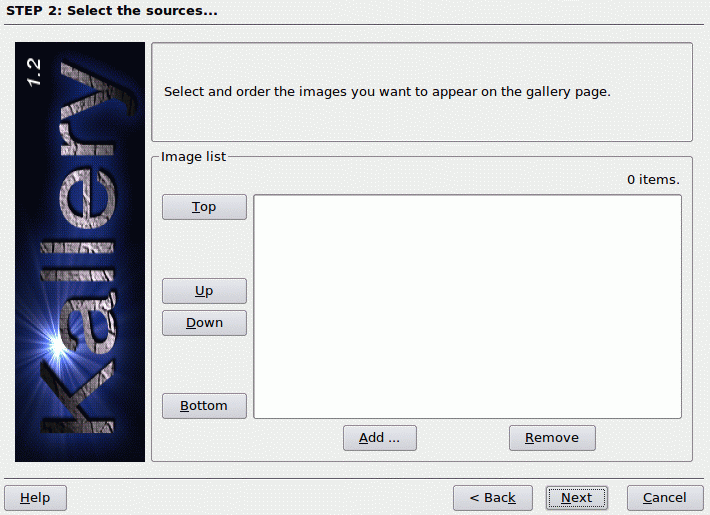
Select "Add ..." to select the image files to use.
The vieing order can be customized.
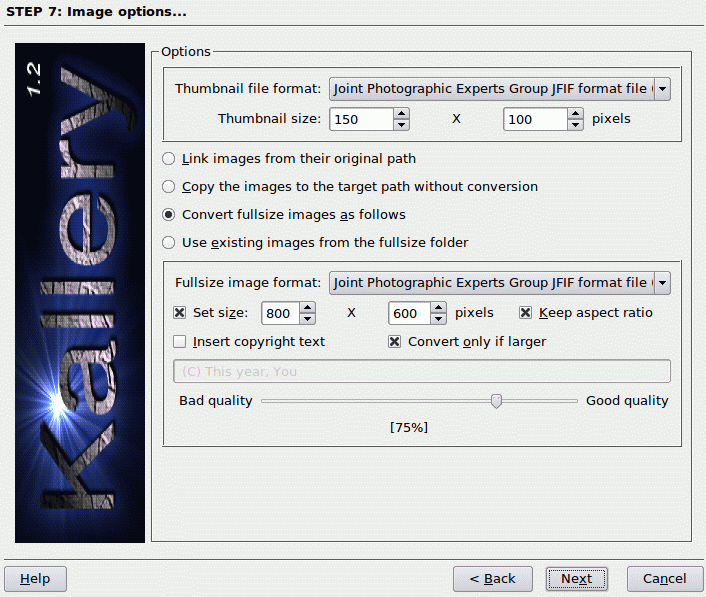
You have the option to choose the thumbnail image size as well as the image size of the "full size" image to be viewed upon selection.
Other options include image information to be displayed (date, dimensions, file size, custom comments, exposure info, ...), background colors, link and navigation customization, CSS, language encoding, etc ...
FGallery is a command line script to generate a visually pleasing static web page photo album.
FGallery home page
FGallery man page
Ubuntu (16.04 - 21.04) Installation: sudo apt-get install fgallery
Usage: fgallery -t ./photos-in/ web-out/ "Title name of album"
Bins is a command line script to generate a static web page photo album.
Installation:
- Ubuntu 16.04: Download deb package for 14.04
dpkg -i bins_1.1.29-16_all.deb - Ubuntu 14.04: apt-get install bins
sudo apt-get install libpath-tiny-perl

sudo cpan
  install Image::Size
  install Image::Info
  install HTML::Clean
  install Data::Grove
  install Test::Harness
  install ExtUtils::Command::MM
  install XML::Grove     -- THIS FAILS - bug in Ubuntu 20.10!
  exit
Bins also requires ImageMagick: sudo apt-get install perlmagick
man page: bins
Use: bins -s petrus -d never -f ~/.bins/binsrc photosin/ web/
Where the directory "photosin" is a directory full of image files (eg jpg's). The directory "web" is generated and contains the web content of HTML pages, downsized photos and support files.
Flags:- -d always | never | exist
flag controls use of EXIF data in description fields - -o scaled | copied | custom
- -h: help
Template styles are installed to /usr/share/bins/ and consist of the following options:
- joi
- marc
- martin
- mwolson
- petrus
- satyap
- swigs
Config file: ~/.bins/binsrc (copy from /etc/bins/binsrc)
- mkdir ~/.bins
- cp /etc/bins/binsrc ~/.bins/binsrc
| Directive | Options |
|---|---|
| templateStyle | swigs See: /usr/share/bins/ |
| homeURL | / |
| jpegQuality | 75 |
| deExifyImages | 1 |
| emptyAlbumDesc | 0 (no) 1 (default) |
| titleOnThumbnail | 0 (no) 1 (default) |
| defaultSize | 1 (default medium) 0 (small) |
| thumbsPerRow | 5 |
| numThumbsPerPage | 50 16 (default) |
| previewMaxWidth | 200 (thumbnail image width in pixels) |
| previewMaxHeight | 150 (thumbnail image width in pixels) |
| createHtaccess | 1 (generate) 0 (don't generate) |
| Small | height="40%" width="40%" or set absolute size: height="1000" width="1000" |
My Bins custom template (minimalist web display)
Lazygal is a command line script to generate a static web page photo album.
Lazygal home page
Lazygal man page
Ubuntu (16.04 - 21.04) Installation: sudo apt-get install lazygal
Usage: lazygal -o web-out ./photos-in/
Album is a command line script to generate a simple static web page photo album.
Installation: Ubuntu 16.04,14.04: apt-get install album
man page: album
Command: album -no_image_pages -no_captions -geometry=250x200 -medium=1000x1000 -just_medium -index=index.html -columns 5 photos/
Arguments:- -no_image_pages: Album links to image directly rather to an HTML page with an image
- -no_captions: No photo captions
- -geometry=250x200: Thumbnail geometry
- -medium=1000x1000: photo re-size
- -just_medium: specify just one image size to be generated
- -index=index.html: web page to be generated
- -columns 5: Web page has five thumbnail image collumns
- photos/: final argument specifies the directory of photos to process
ThumbsUp is a command line script to generate a static web page photo album.
Cross Platform NPM Installation: npm install -g thumbsup
Usage: thumbsup --input ./photos-in/ --output web-out
- Apache.org: Configuring Apache for suEXEC Support
- List of AJAX based galleries
- WordPress Photo Gallery plug-ins
- Drupal plug-ins

