


GNOME core components include:
- Control Center: This collection of applications customizes the GNOME environment.
- gnome-panel : This application provides the tool bar and menu system to launch applications and host panel applets. Panel also interfaces with session manager (gnome-session) when exiting the desktop. Panel also interfaces with session-manager when exiting the desktop and managing "saved" sessions when launching the desktop.
- nautilus : Manages desktop icons and provides a file manager.
- gdm : GNOME Display Manager (login screen) This handles X-Authentication, netwrk desktop access (XDMCP), graphical login prompt, logos, ...
- GNOME VFS: Uses mime types for transparent file access.
- Window manager. None specified. Can use Metacity, Sawfish, ...
- Component management:
- D-Bus: cross-desktop message bus for sending events between various applications, the desktop, and low-level components of the system. D-Bus enables different types of applications to communicate and integrate with each other and with the desktop.
Note that Bonobo and ORBit have been deprecated in favor of D-Bus. - Bonobo: GNOME inter-application CORBA communications.
- ORBit: CORBA Object Request Broker (ORB). Makes objects accessible.
(Uses: /usr/bin/gnome-name-service)
- D-Bus: cross-desktop message bus for sending events between various applications, the desktop, and low-level components of the system. D-Bus enables different types of applications to communicate and integrate with each other and with the desktop.
If the system is configured to boot to run level 3 (console mode) the X-Windows is started by the command xinit. If configured to boot to run level 5 then the gdm will be executed at system start-up. The choice of using the KDE (kdm) or GNOME (gdm) login manager is set in the config file /etc/sysconfig/desktop. There are two options:
- DESKTOP="GNOME"
(Configure with: /usr/sbin/gdmsetup)
or - DISPLAYMANAGER="KDE"
- X-Windows command xinit:
- /etc/X11/xinit/xinitrc
which sets the environment and calls: - /etc/X11/xinit/xinitrc-common
which set the root window, sets resource files for the:- keyboard (/etc/X11/Xmodmap)
- fonts (/etc/X11/Xresources)
- ...
- /etc/X11/xinit/xinput.d/...
language configurations ...
- /etc/X11/xinit/xinitrc
- The login screen: /usr/bin/gdm
- X-windows script /etc/X11/xdm/Xsession starts X-windows session and then calls /usr/bin/gnome-session
- gnome-session :
This sets up GNOME desktop environment.
Config file: /usr/share/gnome/default.session
# This is the default session that is launched if the user doesn't
# already have a session.
# The RestartCommand specifies the command to run from the $PATH.
# The Priority determines the order in which the commands are started
# (with Priority = 0 first) and defaults to 50.
# The id provides a name that is unique within this file and passed to the
# app as the client id which it must use to register with gnome-session.
# The clients must be numbered from 0 to the value of num_clients - 1.

[Default]
num_clients=7
0,id=default0
0,Priority=60
0,RestartCommand=pam-panel-icon --sm-client-id default0
1,id=default1
1,Priority=10
1,RestartCommand=gnome-wm --default-wm gnome-wm --sm-client-id default1
2,id=default2
2,Priority=40
2,RestartCommand=gnome-panel --sm-client-id default2
3,id=default3
3,Priority=40
3,RestartCommand=nautilus --no-default-window --sm-client-id default3
4,id=default4
4,Priority=60
4,RestartCommand=rhn-applet-gui --sm-client-id default4
5,id=default5
5,Priority=50
5,RestartCommand=eggcups --sm-client-id default5
6,id=default6
6,Priority=40
6,RestartCommand=magicdev --sm-client-id default6
This config file lists the GNOME processes to start.
GUI configuration tools:
- /usr/bin/gnome-session-properties
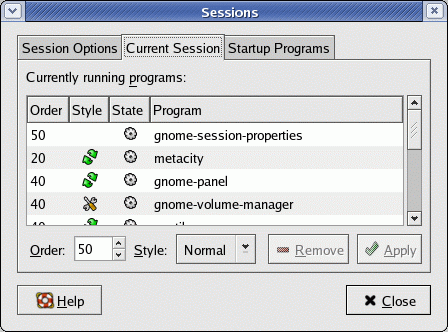
- /usr/bin/gnome-session-remove
- /usr/bin/gnome-session-save
gnome-session executable and config file starts:
- pam-panel-icon
- gnome-wm
(Script /usr/bin/gnome-wm to start window manager)
Script also identified in config file: /usr/share/gnome/default.wmUses first window manager found in list in script: i.e. metacity sawfish sawmill enlightenment icewm wmaker fvwm2 qvwm fvwm twm kwm[Default] WM=gnome-wm
Gnome-wm also uses environment variable: WINDOW_MANAGER
Script then uses gconftool to set gconf key. (gconf key: /desktop/gnome/applications/window_manager/default) Also starts omf
Configure with /usr/bin/gnome-session-properties - gnome-panel
(toolbar)
Configure with gnome-panel-properties-capplet
Add launcher with gnome-panel-add-launcher - nautilus : Manages desktop icons and provides a file manager.
- rhn-applet-gui : up2date and network alert notification tool.
- eggcups : printer support
- magicdev
CD and DVD mounter. Config tool: gnome-cd-properties
Config files:- /etc/gconf/schemas/magicdev.schemas
- /usr/share/applications/gnome-cd-properties.desktop
Can save with save-session for later start-up. - /usr/bin/gnome-session-properties
GDM commands:
- GDM Configuration GUI: /usr/sbin/gdmconfig (same as gdmsetup)
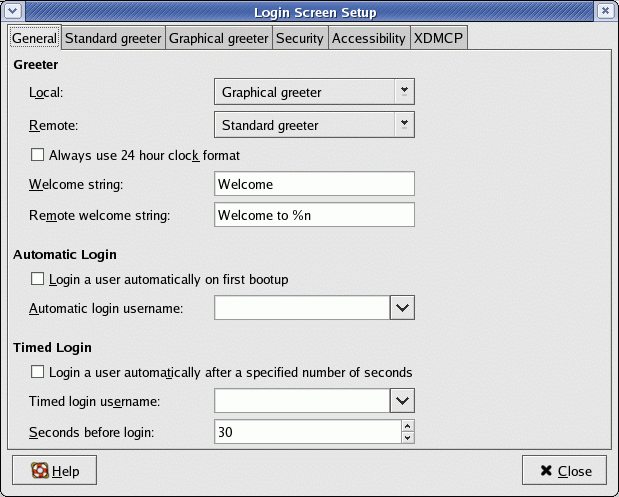
- Re-Start:
- Red Hat/Fedora Core: /usr/sbin/gdm-restart
/usr/sbin/gdm-safe-restart - S.u.S.e.: /opt/gnome/sbin/gdm-restart
/opt/gnome/sbin/gdm-safe-restart
- Red Hat/Fedora Core: /usr/sbin/gdm-restart
- Stop:
- Red Hat/Fedora Core: /usr/sbin/gdm-stop
- S.u.S.e.: /opt/gnome/sbin/gdm-stop
Components: ORBit: CORBA drag-drop Uses libgnorba for CORBA registry which calls gnome-name-service. gnome-name-service - Orbit name service GOAD is the GNOME Object Activation Directory. It keeps track of the CORBA object implementations on system.
Red Hat / Fedora Packages: usermode-gtk gnome-session magicdev gnome-panel
Also see the YoLinux init process tutorial
The GNOME desktop will generate the following configuration files and directories in the users home directory:
| File/Directory | Description |
|---|---|
| .esd_auth | [File] Enlightened Sound Daemon (ESD) authentication cookie. |
| .gconf | [Directory] User preferences stored here. |
| .gconfd | [Directory] gconfd daemon information stored here. CORBA IOR and object info. |
| .gnome | [Directory] User info not held in .gconf. i.e. mime type info. |
| .gnome2 | [Directory] User info not held in .gconf. i.e. Window location, keyboard shortcut info, ... |
| .gnome-private | [Directory] Empty. Not used?? |
| .gnome2-private | [Directory] Empty. Not used?? |
| Desktop .gnome-desktop (older RH 8/9) |
[Directory] Desktop icons and application launchers. |
| .nautilus | [Directory] Nautilus file manager data. |
| .thumbnails | [Directory] Thumbnail images generated and used by Nautilus. |
| .metacity | [Directory] Metacity window manager data. |
| .themes | [Directory] Theme options, window frame options, ... |
| .screensaver | [Directory] Screensaver configuration data. Command to set defaults: xscreensaver-demo Command to control xscreensaver process: xscreensaver-command System configuration data stored in: /usr/X11R6/lib/X11/app-defaults/XScreenSaver |
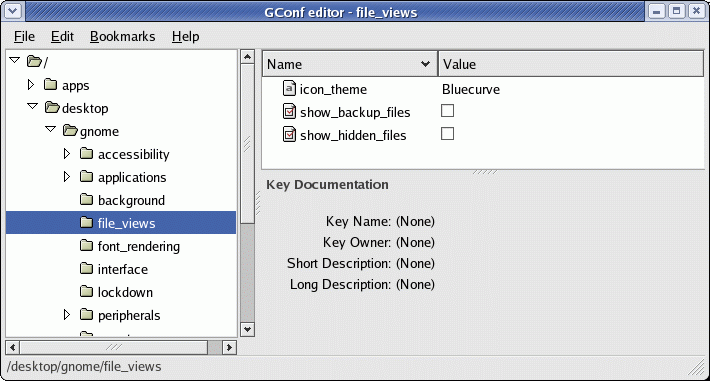
GConf is used by GNOME to expose settings to multiple applications. GConf is the GNOME way of persisting application settings and should be used by GNOME application programmers. GConf includes notification service alerts to applications to changes in configuration data, and is used by GNOME itself. A command line tool (gconftool, FC3 /usr/bin/gconftool-2) and a simple GUI application (gconf-editor) are supplied to facilitate administration.
GNOME primary configuration GUI tool: gnome-control-center
| Command | Description |
|---|---|
| GNOME Configuration and Properties (This single command ties in most of the commands below into a single GUI.) |
/usr/bin/gnome-control-center |
| GNOME Display Properties (X-Windows resolution) |
/usr/bin/gnome-display-properties |
| GNOME Window Properties (X-Windows Properties) |
/usr/bin/gnome-window-properties |
| GNOME Desktop Keyboard Properties | /usr/bin/gnome-accessibility-keyboard-properties (RH 9.0, FC 1/2/3) |
| GNOME Desktop Keybinding Properties | /usr/bin/gnome-keybinding-properties (RH 9.0, FC 1/2/3) |
| GNOME Desktop Keyboard Layout | /usr/bin/gnome-keyboard-layout (FC 3) |
| GNOME Desktop Keyboard Properties | /usr/bin/gnome-keyboard-properties (FC 3) |
| GNOME Mouse Properties | /usr/bin/gnome-mouse-properties (FC 3) |
| GNOME Desktop Network Configuration | /usr/bin/gnome-network-preferences (RH 9.0, FC 1/2/3)) |
| GNOME Sound Properties | /usr/bin/gnome-sound-properties (RH 9.0, FC 1/2/3) |
| GNOME Volume Control | /usr/bin/gnome-volume-control (FC 3) |
| GNOME Volume Properties Device specific) |
/usr/bin/gnome-volume-properties (FC 3) |
| GNOME Audio Profiles (CD quality, ...) | /usr/bin/gnome-audio-profiles-properties (FC 3) |
| GNOME Theme Manager (Desktop look) | /usr/bin/gnome-theme-manager (FC 3) |
| GNOME Background Properties (Wallpaper) | /usr/bin/gnome-background-properties (FC 3) |
| GNOME Bluetooth Manager | /usr/bin/gnome-bluetooth-manager (FC 3) |
| GNOME desktop options and GNOME applications configuration | /usr/bin/gconf-editor (RH 8.0+ ... FC 3) |
| GNOME desktop properties configuration | /usr/bin/gnome-session-properties (RH 8.0+) (Use gnome-session-save or select save on exit to store settings. If you mess up, delete $HOME/.gnome2/session*.) |
| GNOME desktop Character Map configuration | /usr/bin/gnome-character-map (FC 3) |
| GNOME desktop font configuration (run as root) |
/usr/bin/redhat-update-gnome-font-install (RH 9.0 - FC 3) /usr/bin/redhat-update-gnome-font-install2 |
| GNOME Font properties | /usr/bin/gnome-font-properties |
| GNOME Font Viewer | /usr/bin/gnome-font-viewer |
| GNOME desktop properties save | /usr/bin/gnome-session-save (RH 8.0+) |
| GNOME session properties | /usr/bin/gnome-session-properties |
| GNOME Panel Preferences | /usr/bin/gnome-panel-preferences (RH 8.0,9.0) (Also see gnome-panel-screenshot) |
| GNOME Desktop User Interface Properties | /usr/bin/gnome-ui-properties |
| GNOME Desktop File Types and Properties | /usr/bin/gnome-file-types-properties (RH 9.0) |
| GNOME Desktop Item Edit | /usr/bin/gnome-desktop-item-edit |
| GNOME Default Application Configuration (Default web browser, Mail reader, ...) |
/usr/bin/gnome-default-applications-properties |
| GNOME Default Printer | /usr/bin/gnome-default-printer |
| GNOME Database Properties | /usr/bin/gnome-database-properties |
| GNOME Help | /usr/bin/gnome-help |
| GNOME About | /usr/bin/gnome-about |
Note: The S.u.s.e. distribution locates Gnome commands in /opt/gnome/bin/... The Red Hat/Fedora distribution locates commands in /usr/bin/... as described in the table above.
For a list of all Red Hat configuration commands (keyboard, sound, ...) see the YoLinux Tutorial on Red Hat installation and system Re-Configuration
GNOME has also been stepping outside it's desktop world to include some computer systems configuration. See: gnome-nettool
Commands for developers: /usr/bin/gnome-config (script), gnome-doc, gnome-dump-metadata, gnome-gen-mimedb, gnome-obex-send, gnome-obex-server, gnome-theme-thumbnailer, gnome-thumbnail-font, gnome-typing-monitor, gnome-vfs-config
If your corporate environment uses a proxy (which so many do) then configure the GNOME desktop and GNOME desktop applications to utilize this proxy.
- Select "System" from Desktop toolbar.
- Select the "Preferences" option.
- Then select the "Network Proxy" option.
- HTTP Proxy: proxy.mega-corp.com Port: 80
Also enter your proxy login and password.
One can also enter the command: /usr/bin/gnome-network-properties
(Red Hat and Ubuntu based distributions)
(Older systems used gnome-network-preferences)
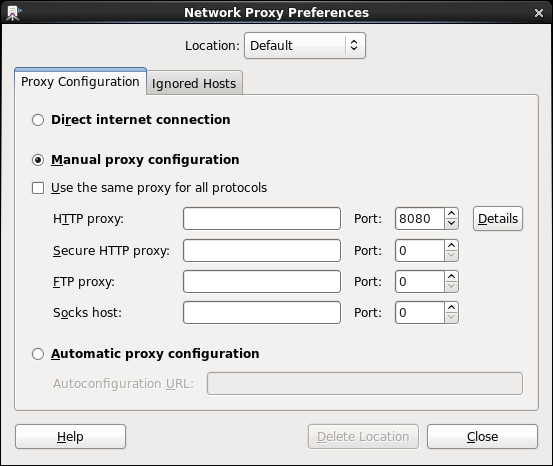
Select the "Details" button to enter a login/password if your proxy requires authentication.
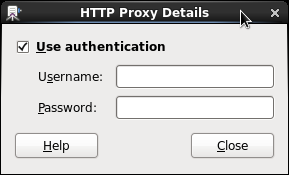
This enters the configuration in the file: /home/user1/.gconf/system/http_proxy/%gconf.xml
| Shortcut | Description |
|---|---|
| F1 | Launch Gnome help system. If pressed in a Gnome aware application, the help document for the given application is opened. Otherwise, the GNOME main help page is opened. |
| F2 | Raise the current window to the top of the desktop or to the foreground. This is the same affect achieved by mouse clicking on a window. |
| Menu | Opens the main desktop menu. This key can be used from within any GUI application. This key is located next to the Ctrl key in the lower-right part of the keyboard. |
Location of ".desktop" Definition File:
Menus are specified by ".desktop" files located in one of the following directories:
- /usr/share/gnome/apps/
- /etc/X11/applnk/
- /usr/share/applnk/
- $HOME/.gnome/apps/
(Private menues)
Definition File: (".desktop")
Example desktop menu file for a single application: /usr/share/applications/gnome-gcalctool.desktop
[Desktop Entry]
Encoding=UTF-8
Name=Calculator
Name[ca]=Calculadora
Name[it]=Calcolatrice
...
Comment=Perform calculations
Comment[ca]=Calcula
Comment[it]=Esegue vari calcoli
...
Exec=gcalctool
Icon=gnome-calculator
Terminal=false
Type=Application
Categories=GNOME;Application;Utility;
X-GNOME-DocPath=gcalctool/gcalctool.xml
X-GNOME-Bugzilla-Bugzilla=GNOME
X-GNOME-Bugzilla-Product=gcalctool
X-GNOME-Bugzilla-Component=general
X-GNOME-Bugzilla-OtherBinaries=gnome-calculator
X-Desktop-File-Install-Version=0.9
OnlyShowIn=GNOME;
- Icon file reference or explicit icon file name can be used:
Icon=gnome-calculator
or
Icon=/usr/share/pixmaps/gnome-calculator.xpm - One can use the words true/false or numerical representation 1/0:
Terminal=0
Notes:
- Icon: Icons of various sizes but of the same name are all located in:
- /usr/share/icons/Bluecurve/32x32/apps/gnome-calculator.png
- /usr/share/icons/Bluecurve/16x16/apps/gnome-calculator.png
- /usr/share/icons/Bluecurve/24x24/apps/gnome-calculator.png
- /usr/share/icons/Bluecurve/36x36/apps/gnome-calculator.png
- /usr/share/icons/Bluecurve/48x48/apps/gnome-calculator.png
- /usr/share/icons/hicolor/32x32/apps/gnome-calculator.png
- /usr/share/icons/hicolor/48x48/apps/gnome-calculator.png
- Terminal: Two options
- true: Launch an ASCII text terminal in which to run application.
- false: Does not require a text terminal.
- Type: Two options
- Application: This option starts an application
- Link: Link to file, folder (directory) or URL.
- Categories: Item descriptions as specified by a standard category keyword in the desktop menu specification at FreeDesktop.org
- X-GNOME-DocPath: File to display when user selects "Help" on application name.
KDE: /usr/share/applnk/Multimedia/RealPlayer.kdelnk
[KDE Desktop Entry]
Comment=RealPlayer
SwallowTitle=
SwallowExec=
BinaryPattern=realplayer;RealPlayer;
Name=RealPlayer8
Exec=/usr/lib/RealPlayer8/realplay
Icon=/usr/lib/RealPlayer8/rp7.xpm
MiniIcon=/usr/lib/RealPlayer8/rp7mini.xpm
TerminalOptions=
Path=
Type=Application
Terminal=0
MimeType=audio/x-pn-realaudio;audio/vnd.rn-realaudio;
Sub-Menus:
Definition file:- /usr/share/desktop-directories/Accessories.directory
- /usr/share/gnome/vfolders/Accessories.directory
[Desktop Entry]
Name=Accessories
Name[ca]=Accessoris
Name[it]=Accessori
...
Comment=Desktop accessories
Comment[ca]=Accessoris d'escriptori
Comment[it]=Accessori desktop
...
Icon=redhat-accessories.png
Type=Directory
Encoding=UTF-8
Notes:
- List order of menu items:
- GNOME specifies with the ".order" file.
- KDE is alphabetical
- GNOME refreshes every read. KDE caches. Restart KDE to pick up changes.
Launch applications from a double click of a desktop icon by creating a desktop launcher.
Right mouse click on the GNOME desktop and select "Create Launcher".
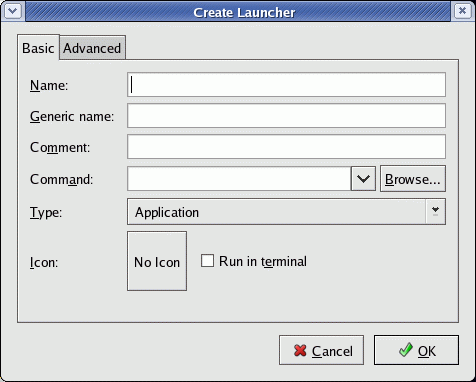
This will generate the GNOME launch file ~/Desktop/launcher-name.desktop
[Desktop Entry]
Encoding=UTF-8
Version=1.0
Type=Application
Exec=/path/to/command command arguments
TryExec=/path/to/command-to-execute-first command arguments
X-GNOME-DocPath=
Terminal=true
Name[en_US]=name-of-launcher
Comment[en_US]=This is a comment
- Execute string of commands as one bash command:
Type=Application Terminal=true Exec=bash -c "cd /dir/path;/command/path/exe" ... - Specify path:
Type=Application
Terminal=true
Path=/dir/path
Exec=/path/to/command command arguments
...
- RabbitVCS: Subversion plugin for Nautilus - YoLinux tutorial
- http://g-scripts.sourceforge.net/ - Script functionality within Nautilus.
- Desktop Image: Use the "Print Screen" key. This will take a snapshot of the desktop by launching the command /usr/bin/gnome-panel-screenshot and request where to save the resulting PNG image.
Cursor focus must be on the desktop, thus one can not select a pull-down GUI menu and take a screenshot at the same time. - Delayed Desktop Image: Use the ImageMagick X11 command sleep 5; import -window root ~/Screenshot.png
This command sleeps for 5 seconds before taking the snapshot image of the desktop. This works even when you open a GUI menu.
Cursor focus not relevent. - Window Image: Alt + "Print Screen"
Generates image file of active window.
- Check for errors in the file $HOME/.xsession-errors
- Fix the error: "Failed to activate 'OAFID:GNOME_SettingsDaemon"
This annoying dialog box may appear after one logs in. Themes, sounds
or background may cease to operate properly. You may also get the error
message "The Settings Daemon restarted too many times."
To fix this condition run the script: /usr/bin/oaf-slay
This script will kill OAF processes on systems using OAF and bonobo. - Everything messed up for user1! As root in console mode (ctrl-alt-F1)
- init 3
- cd /home/user1
- rm -Rf .gtkrc .esd_auth .gconf .gconfd .gnome .gnome2 .gnome-private .gnome2-private .nautilus .thumbnails .metacity .themes .screensaver
- cp -R /etc/skel/.gtkrc .
- chown user1.user1 .gtkrc
- rm -Rf /tmp/gconfd-user1 /tmp/orbit-user1
- init 5
- I was getting an error dialog box each time I attempted to launch gnome-terminal. I had the environment variable
LD_LIBRARY_PATH pointing to a conflicting set of libraries and
exported GNOME applications registering to my desktop.
It was fixed using the above technique (file and directory cleanup),
unsetting the environment variable LD_LIBRARY_PATH and restarting
X-Windows. (init 3 then init 5).
The error if I start from an "xterm" was:(gnome-terminal:1354): GLib-GObject-WARNING **: cannot create instance of
abstract (non-instantiable) type `GtkWidget'
- Fixing just the GNOME panel:
- killall gnome-panel
- rm $HOME/.gnome/panel
- gnome-panel &
- Using the window manager on a second and separate monitor.
I personally recommend using a single desktop for two monitors but if
separate:
- DISPLAY=:0.1 sh -c 'sawfish& gnome-panel&'
- Desktop launcher icons: (located in ~/Desktop/application-name.desktop)
Problem: When you use a file server to provide a single home directory for multiple distros and versions of Linux, one quickly finds that the icons from system to system are NOT located in the same directory path, nor are the icons all available on all systems.
Solution: Create a local icons directory (~/DesktopIcons). Copy icons to this directory and reference them in your launcher.
How to change the Ubuntu window manager from Unity to Metacity:
Ubuntu 18.04 uses the Gnome desktop and GDM login manager.
Ubuntu (11.04+) upgrades to and installs with "Unity" as the default desktop X-window manager. For developers or users of multi-window applications this window manager is deeply flawed. Unity turns off an application's toolbar unless it maximizes to the entire screen and only then will the toolbar function. Applications such as Gimp require the simultaneous use of multiple windows with none maximized.
The default Gnome 2.2+ window manager is "Metacity" and it does not have the rediculus restrictions and limitations of Unity.
To change the default Ubuntu desktop from Unity to Metacity perform the following steps:- Start the "Control Center" by selecting the switch icon (circle with a vertical bar at the peak)
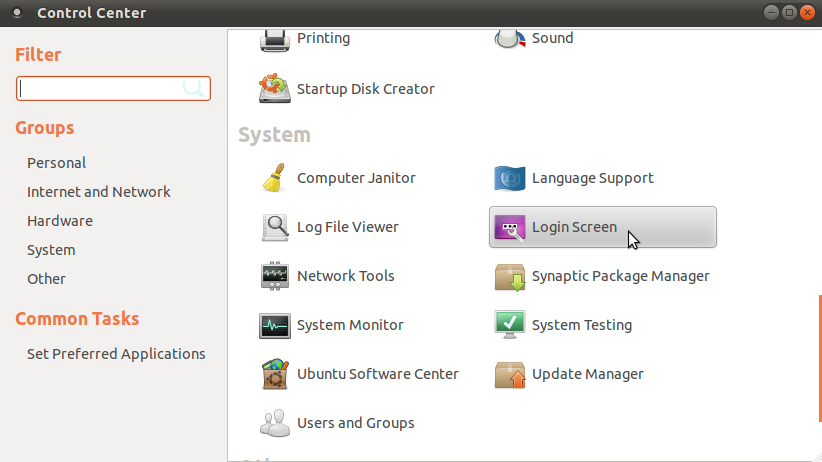
- Scroll to and select "Login Screen" and select "Ubuntu Classic"
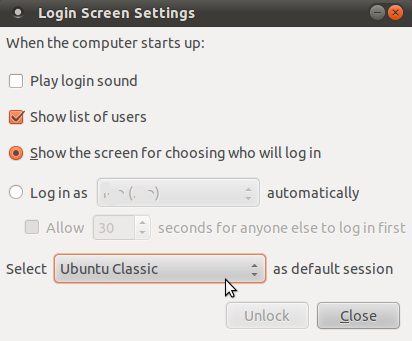
Note that Gnome 3 will introduce the X-window manager "Matter" (a combination of Metacity and the Gnome shell "Clutter": a MeGo based mobil OS Javascript desktop).
Move window frame buttons to the right corner:
Move window frame buttons (close | minimize | maximize) from left to right corner:- Start Gnome configuration editor: gconf-editor
- apps -> Metacity -> General
- Select "button_layout" and change values to: menu:maximize,minimize,close
Note that the colon separates the bulk of the frame from the corner.
- GNOME.org
- Novell Linux Desktop GNOME User Guide
- Novell GNOME Configuration for Administrators
- Sawfish window manager
- http://www.freedesktop.org/ - Desktop standards
- DocBook Standard - Help menus in /usr/share/gnome/help/... Use html files or XML
- IRC Help: irc.gnome.org
#fedora-desktop
Related YoLinux Tutorials:
 Books:
 |
"The Official GNOME 2 Developer's Guide"
by Matthias Warkus ISBN # 1593270305, No Starch Press For developers using GNOME API. |

|
 |
"GNOME/Gtk+ Programming Bible"
by Arthur Griffith ISBN # 0764546406, Hungry Minds, Inc Covers programming desktop GUI applications with the GNOME/Gtk+ GDK API. |
|

